Monster placement

Place your first monster on a working maze cell

Open Monsters, get Wanderer, return Home, select it from the hotbar, and place it on a maze cell where visitors can actually reach it.

Page updated August 5, 2026

Quick answer

Monsters → Wanderer → Home → hotbar → maze cell.

That is the current tutorial sequence visible in the walkthrough reviewed August 5, 2026. A monster does not go on the empty plot border or in the shop area. Select it at your base and click a cell inside the maze.
  1. 1Get Wanderer in the Monsters shop
  2. 2Return Home and select it from the hotbar
  3. 3Click a maze cell and watch the route

Exact route

The five clicks that matter

  1. 1

    Open Monsters

    Use the red Monsters tab at the top of the current tutorial UI. The walkthrough shop lists Wanderer first and Smiler below it.

  2. 2

    Get Wanderer

    Use the live shop button shown in your server. The recorded price is a dated snapshot, so this guide does not turn it into a permanent cost table.

  3. 3

    Choose Home

    The tutorial tells the player to return to the base so the monster can begin hunting. Home is the green top tab in the reviewed UI.

  4. 4

    Select the hotbar slot

    Wanderer appears in the numbered hotbar. Click the occupied slot; the slot number can change with your inventory.

  5. 5

    Place on a maze cell

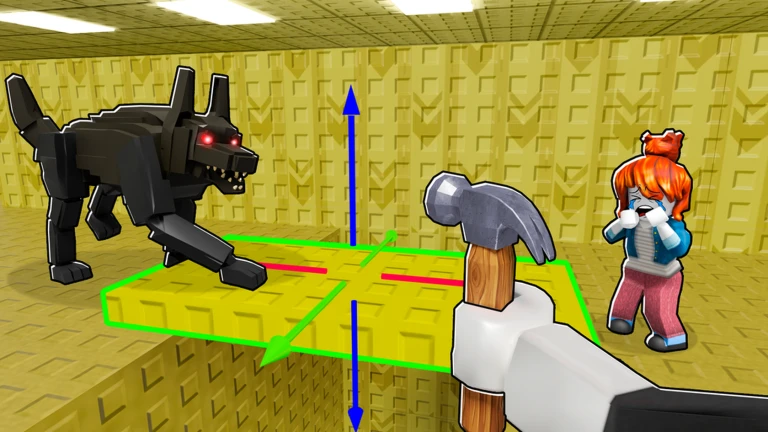
    Move the green placement box onto a cell inside the built maze and click. The tutorial says the monster spawns in the selected cell and catches people inside the maze.

Current walkthrough

See the shop-to-cell flow before you buy

Official Build Your Backrooms art used as a cover for the community walkthrough linkOpen the walkthrough
Community footageReviewed August 5, 2026

How to Play Build Your Backrooms Roblox - Full Guide

by VendoPlus

The placement sequence starts after the first building step. Watch the Monsters shop, Home return, hotbar selection, and maze-cell prompt; then use the live labels in your own server.

  • Wanderer and Smiler visible in the shop
  • Wanderer selected from the hotbar
  • Green placement box on a maze cell

The card uses official Roblox art as its cover. No YouTube iframe, tracking request, or third-party thumbnail loads until you choose the external link.

Before you click

A valid cell solves three problems at once

CheckWhat to look forWhy it matters
Inside the mazeThe placement box sits on a built yellow cellThe tutorial specifically requires a maze cell
Connected to the entranceA person can move from the entrance to this cellA monster outside visitor flow has no useful route job
Hotbar selectedThe live monster name appears above the hotbarPrevents clicking the plot with the wrong tool active
Capacity availableNo slot/capacity warning blocks the actionThe UI shows monster slots as a system, but the public sources do not publish a universal cap
Outcome visibleYou can watch the approach to the cellSeparates bad placement from a broken route

Verified snapshot

Two shop names are visible; the full roster is not

Wanderer

Visible as the first Common row in the current walkthrough and used by the first-monster tutorial.

Name visually verified

Smiler

Visible as the next Common row in the same Monsters shop recording. Its permanent price and comparative strength are not established.

Name visually verified

Rebirth-locked rows

Lower shop rows display a 1 Rebirth requirement in the recording, but their names are not readable enough to publish.

Held until clearer evidence

Official image roster

Roblox art shows more appearances than the two named rows. Use the in-game card before assigning a name.

See monster reference

If placement fails

Fix the first failed check, not the whole maze

ProblemMost useful checkNext move
No monster in the hotbarConfirm the purchase completed and the item appears in inventoryReopen Monsters and read the live button/status
Click does nothingConfirm Wanderer is selected and the box is on a maze cellMove onto a built cell and try once
Capacity warningRead the current slot messageRemove or change an existing placement, or use the live slot option only if you want it
Monster spawns but catches nobodyWatch whether visitors reach the selected cellRepair the route or move the monster onto observed traffic
Cash result is unclearRecord cash before and after the same routeUse the test log and change one variable for the next run

Quick answers

Questions players ask before the next build

How do I place a monster in Build Your Backrooms?

Open Monsters, get Wanderer, return Home, select it from the hotbar, and click a built maze cell.

Where should my first monster go?

Use a connected cell on the route visitors already take, preferably where you can see the approach and outcome.

What is the first monster called?

The current tutorial walkthrough uses Wanderer. Smiler is also visible in the shop, but the full roster is not yet verified.

Why will the game not let me place another monster?

Check the selected hotbar item, the maze-cell footprint, and any current slot or capacity message. The public sources do not publish one permanent cap.